

5 Ways to Boost Your Rural Internet & Phone Connectivity
Frustrated with slow internet and dropped calls? You're not alone. For many rural Albertans — from Lamont County to Whitecourt — bad connections are more than an annoyance. They can affect your livelihood.
Whether you're a small business, solopreneur, or working from home, here are five practical steps you can take right now to improve your internet speed and phone signal.
Upgrade Your Internet Plan or Provider 🚀
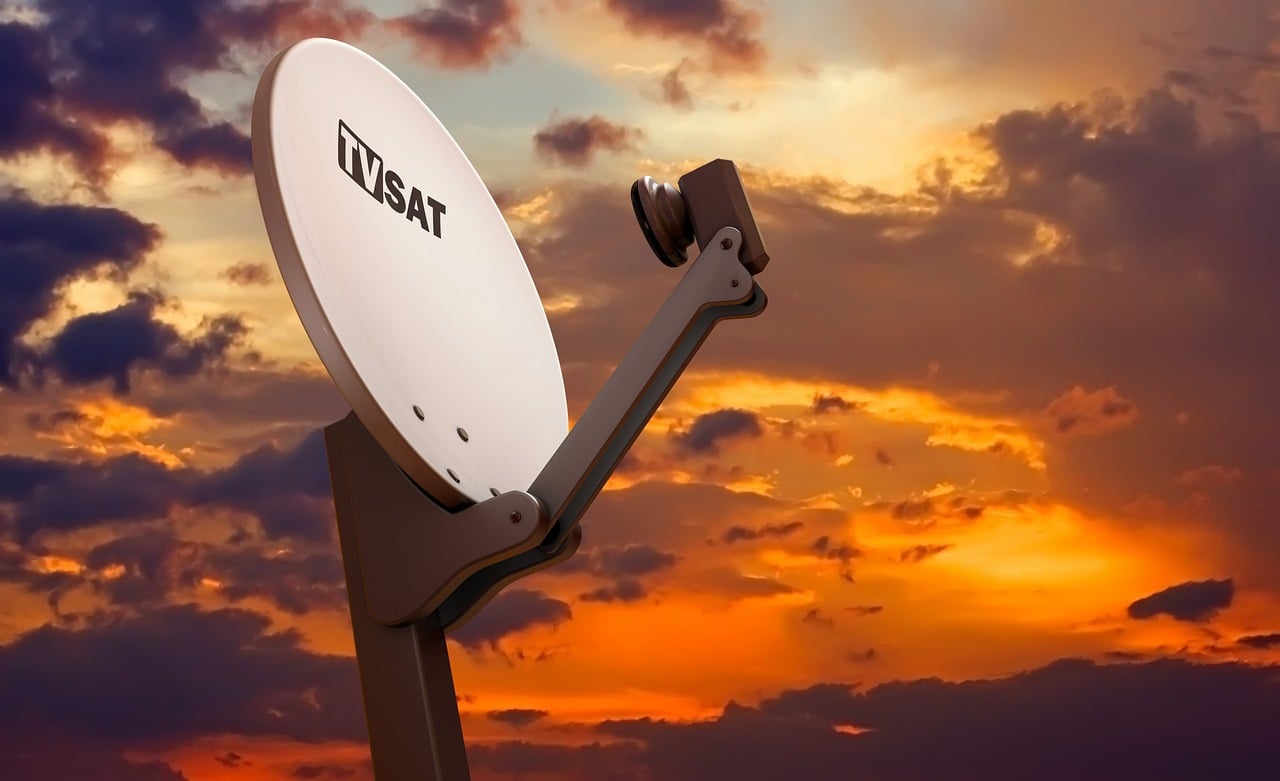
Check if there’s a faster, more reliable plan available in your area. Options like Starlink, LTE-based services, or local wireless providers are expanding quickly in rural Alberta. You might be surprised by what's available.
Ask your provider about high-speed or unlimited plans to avoid throttling after data caps are reached.
Installing a Cellular Signal Booster: What You Need to Know
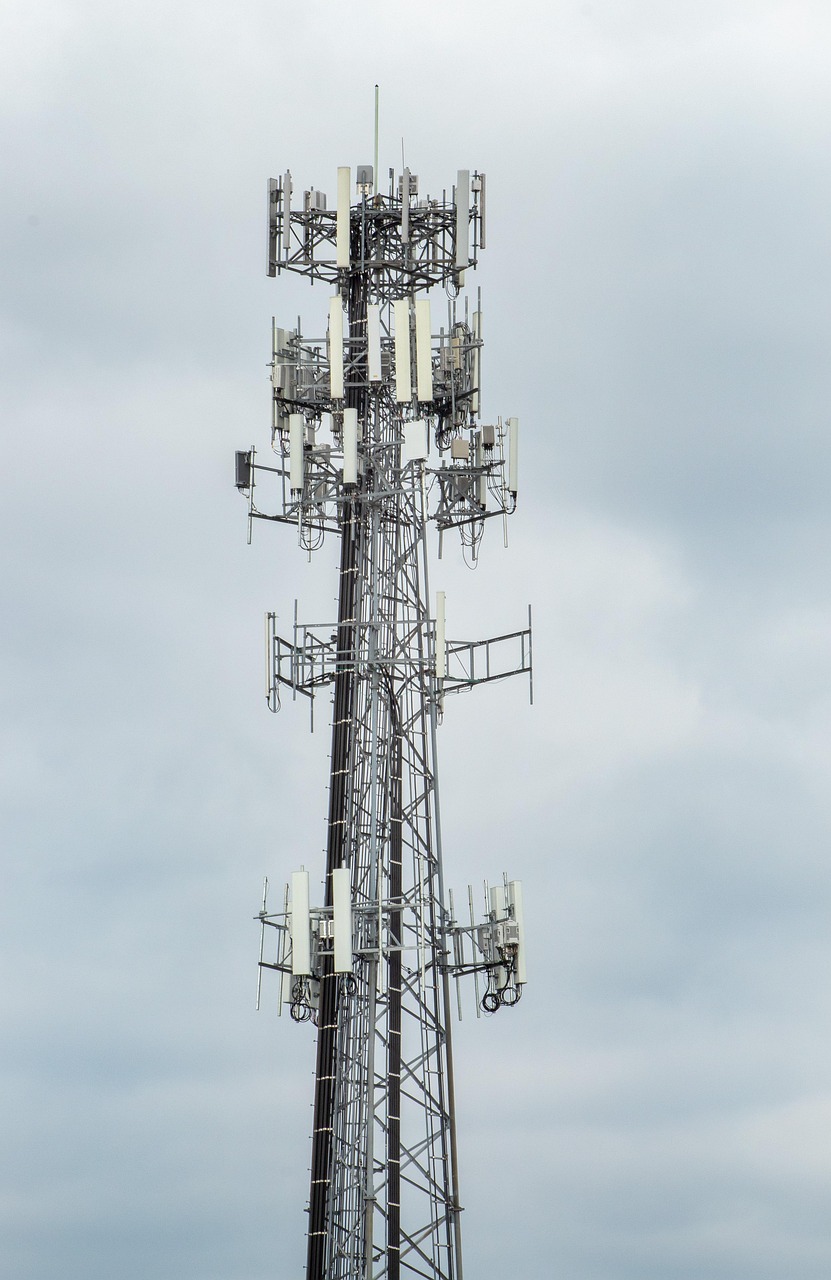
If you're stuck living with one bar of service — you know, the kind where you have to stand in a weird corner of the house just to make a call — a signal booster can be a total game-changer. Brands like WeBoost take the weak signal that's barely hanging on outside and amplify it, then rebroadcast it inside your home or vehicle. Suddenly, you can get more bars, clearer calls, and faster mobile data without having to hike up a hill every time your phone rings.
Here’s how to set it up for the best results:
First, the outdoor antenna is key. You want to mount it as high as you reasonably can — think rooftop, tall pole, or even the top of a shed — somewhere that gets the cleanest signal. Bonus points if you can point it toward the nearest cell tower. (You can use apps like OpenSignal or CellMapper to find the direction of your closest tower if you’re not sure.)
Next, run the cable from the outdoor antenna into your house and connect it to the booster unit. Try to place the indoor antenna in the spot where you actually need better service — like your office, living room, or that annoying dead zone by the kitchen.
A couple of tips to avoid headaches:
- Keep a good distance between the outdoor and indoor antennas (the farther apart, the better). Too close and you can cause interference, called "oscillation," which kills the signal instead of boosting it.
- Aim for a clear line of sight for your outdoor antenna — trees, hills, and buildings can weaken what you're trying to boost.
Once it’s hooked up, you should see a noticeable improvement almost right away. It's not magic, but it sure feels like it when you finally get through a call without hearing, "Hello? Can you hear me? Hello?!"
Set Up a Mesh Wi-Fi Network 🏡
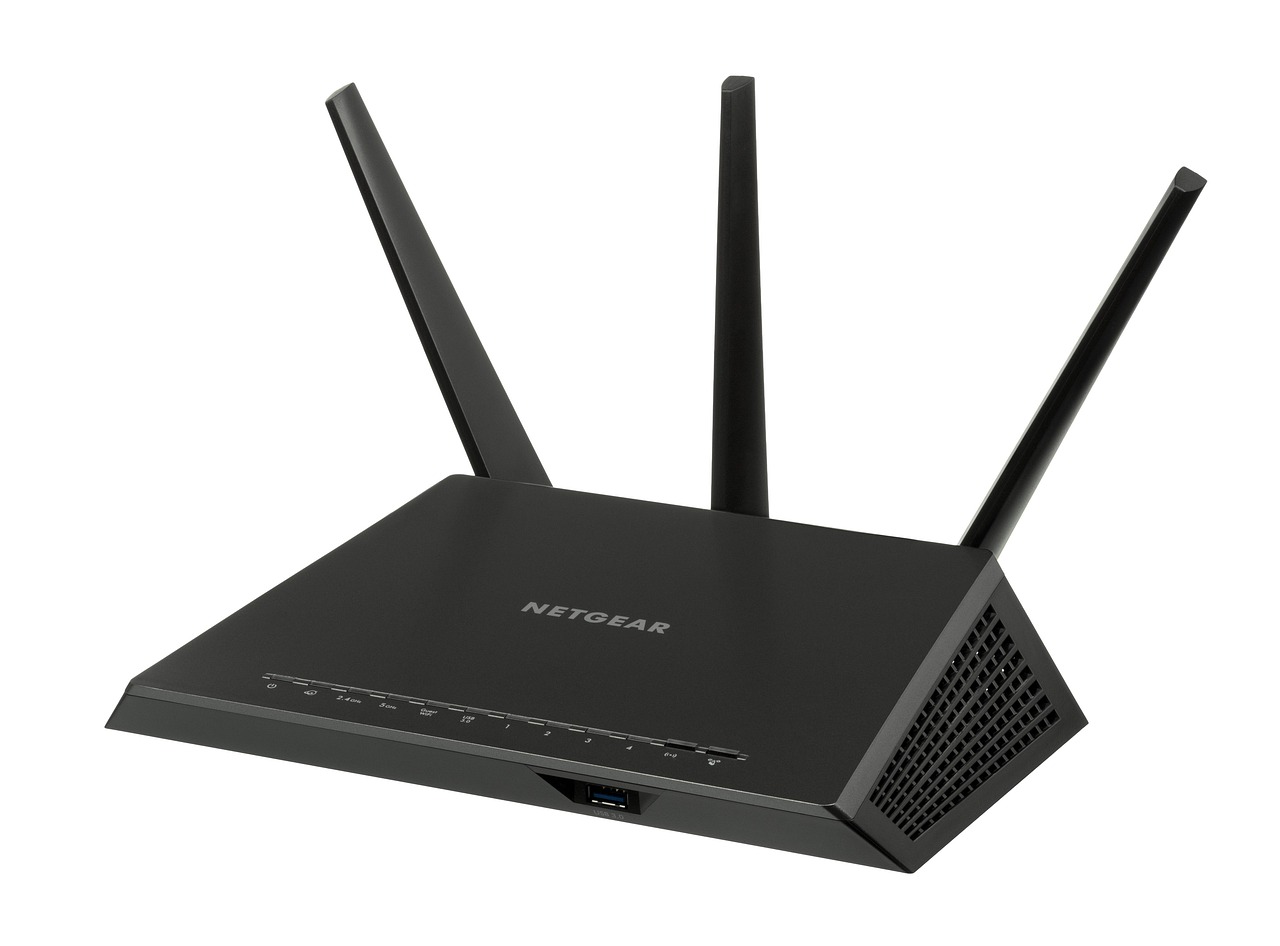
Got Wi-Fi dead zones where your connection slows to a crawl — or just vanishes altogether? A mesh Wi-Fi system can fix that without needing to run a bunch of cables through your walls or yell at your router every ten minutes. Instead of relying on a single router to do all the heavy lifting, mesh systems use multiple "nodes" (basically mini-routers) to blanket your whole home or workspace in strong, consistent Wi-Fi.
Products like TP-Link Deco, Google Nest WiFi, and Eero are super beginner-friendly and usually set up in less than 20 minutes — no IT degree required.
Here's the basic idea:
You’ll start by replacing your old router with the main mesh unit. This one plugs straight into your modem. Then, you set up the additional mesh nodes wherever your Wi-Fi tends to suck — like the far end of the house, upstairs bedrooms, the shop floor, or even outside if you need coverage in the yard.
Each node talks to the others wirelessly, handing off your device connections automatically as you move around. That means you get seamless coverage without weird drops or having to manually switch networks.
A few quick setup tips:
- Place your nodes about halfway between the main router and your dead zones. (If they’re too far apart, they can’t "hear" each other.)
- Avoid sticking them behind thick walls, metal objects, or in the back corner of a cabinet. They need open space to work their magic.
- Most mesh systems have a mobile app that walks you through setup step-by-step and even helps you optimize node placement.
Once you’ve got it running, you’ll wonder why you lived with spotty Wi-Fi for so long. Streaming, Zoom calls, smart home devices — everything just works without the constant buffering or disconnections.
Switching to VoIP: A Smarter Way to Handle Calls ☎️

Still paying for a landline or dealing with outdated phone systems? It's time to consider VoIP (Voice over Internet Protocol). VoIP lets you make and receive calls over the internet, offering flexibility, advanced features, and often significant cost savings.
Whether you're setting up a home office or managing a small business, VoIP can streamline your communication needs. Services like Ooma, RingCentral, or Vonage offer affordable VoIP systems with features like voicemail-to-email, call routing, and more.
Setting Up VoIP: A Step-by-Step Guide
- Choose a VoIP Provider: Start by selecting a VoIP service that fits your needs. Some popular options include:
- Ooma: Ideal for home users, offering straightforward setup and affordable plans.
- RingCentral: Great for small businesses, providing a range of features and scalability.
- Vonage: Offers both residential and business solutions with various features.
- Assess Your Internet Connection: A stable and fast internet connection is crucial for VoIP quality. Ensure you have sufficient bandwidth — typically, 100 kbps upload and download speed per call is recommended. For multiple simultaneous calls, you'll need more bandwidth.
- Gather Necessary Equipment: Depending on your setup, you may need:
- VoIP Phone: A dedicated phone designed for VoIP services.
- Analog Telephone Adapter (ATA): Allows you to use a traditional analog phone with VoIP.
- Softphone App: Software installed on your computer or smartphone to make VoIP calls.
- Set Up Your Equipment:
- VoIP Phone: Connect it to your router using an Ethernet cable.
- ATA: Plug your analog phone into the ATA, then connect the ATA to your router.
- Softphone App: Download the app from your provider, install it on your device, and log in with your account credentials.
- Configure Settings: Access your VoIP account settings to customize features like call forwarding, voicemail, and caller ID. Some providers offer web portals or apps for easy configuration.
- Test Your Setup: Make a few test calls to ensure everything is working correctly. Check for call clarity, proper routing, and feature functionality. If you encounter issues, consult your provider's support resources.
Tips for a Smooth VoIP Experience
- Use Wired Connections: Whenever possible, connect your VoIP devices via Ethernet to reduce latency and improve call quality.
- Quality of Service (QoS): Configure your router to prioritize VoIP traffic, ensuring stable call performance even when other devices are using the network.
- Regular Updates: Keep your VoIP devices and software up to date to benefit from the latest features and security patches.
Switching to VoIP can modernize your communication setup, offering flexibility and features that traditional phone systems can't match. With the right provider and equipment, you'll be making crystal-clear calls in no time.
Have a Backup Connectivity Plan 🌐
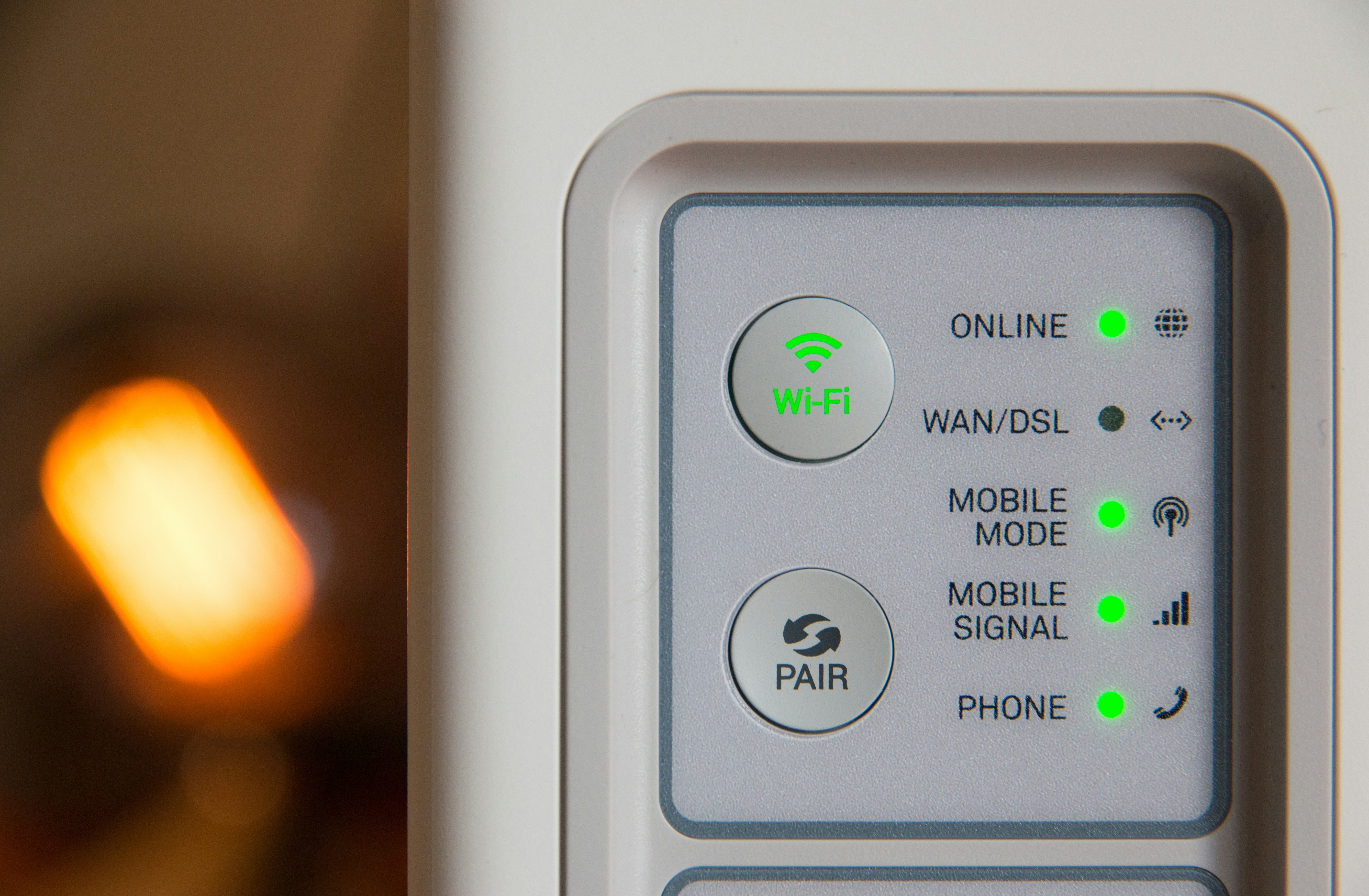
Power outage? Snowstorm? Grid down? In rural areas, it’s not a matter of *if* — it’s *when.* A backup connection can keep your business online, your customers happy, and your peace of mind intact when the unexpected happens.
Popular backup options include:
- Mobile Hotspot: Set up a mobile hotspot on a different carrier than your primary internet service (for example, if your main internet is Telus, consider a Rogers or Bell backup). Devices like the Telus Smart Hub can turn your cellular data plan into a Wi-Fi network in minutes.
- Satellite Internet Fallback: Services like Starlink offer portable, high-speed internet that operates independently of local ground-based networks. It’s especially useful when traditional towers are down or overloaded during emergencies.
- Battery Backup (UPS): A good Uninterruptible Power Supply (UPS) can keep your modem, router, and essential devices running through brief outages, buying you precious time to stay connected or safely shut down.
Even a basic mobile hotspot can save you from hours — or even days — of costly downtime. Investing in a backup plan is one of the smartest moves you can make for both home and business connectivity.
Final Thoughts: Stay Connected, Stay Competitive 📡
Living or working in rural Alberta doesn’t mean you have to accept dropped calls, slow downloads, and frustrating dead zones. By upgrading your internet plan, installing a cellular signal booster, setting up a mesh Wi-Fi network, switching to VoIP, and having a solid backup connectivity plan, you can enjoy reliable, high-speed service no matter where you are. With a little strategy and the right tech, you can stay competitive, connected, and confident — even in the toughest conditions.
Leave a Comment
Comments
No comments yet. Be the first to comment!